 ClustrMaps is a popular widget for class and student blogs because it reminds students that they are part of a global audience and demonstrates how connected we all are.
Students love seeing the red dots grow as their readers, from around the World, visit their blog.
Please Note:
- Edublogs supporters and Edublogs Campus can use the ClustrMaps widget to add a ClustrMaps to their blog sidebar.
- The ClustrMaps widget is designed to provide a quick and easy way of adding a ClustrMaps to your blog sidebar without having to grab the HTML embed code from the ClustrMaps website.
- It’s as simple as adding your email address and agreeing to ClustrMaps terms & conditions!
On free Edublogs blogs you need to follow the instructions below for adding ClustrMaps to your sidebar using a text widget!
Creating Your ClustrMaps
- Go to ClustrMaps.
- Enter your blog URL (e.g. your blog URL should look similar like this https://www.theedublogger.com/) and email address then click on Make My Map.

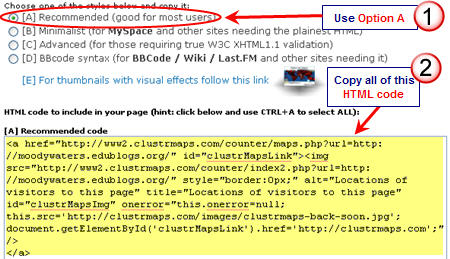
- Copy the HTML code for Option A.
Adding The ClustrMap To Your Blog Sidebar
- Go to Appearance > Widgets in your Dashboard

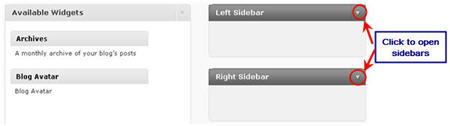
- Click on the desired Sidebar to expand (so you can add the widgets) NOTE: In new blogs sidebars in your dashboard are empty and adding widgets automatically removes the default Edublogs widgets
- To add a text widget, drag it from the Available Widgets areas on the left into the Sidebar area on the right
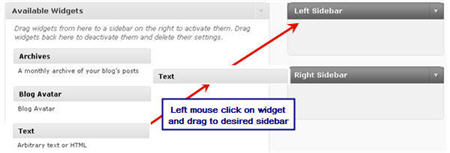
- Drop the widget when you see a dashed line appear – this indicates the widget is in place

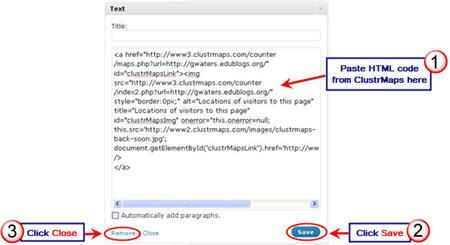
- The widget will automatically open — just add the HTML code from Clustrmaps, click Save and then Close. If you have trouble with the text widget or it doesn’t open — try changing your theme just in case there is an issue with it.
- You should now see your ClustrMaps in your blog sidebar and the dots will start appearing after 24 hours.

FINAL THOUGHTS
If you need to grab new HTML embed code for your ClustrMaps just log into your ClustrMaps Admin area using your blog URL and password (sent in the original signup email from ClustrMaps).
Remember if you are an Edublogs supporters or Edublogs campus users you use the ClustrMaps Widget to add it your blog sidebar.
If you are enjoying reading this blog, please consider  Subscribing For Free!
i have the same problem as u i really need to get rid of that
thank you very much but i missed on step i got everything and i saved it so after when i went to my website my map was there with all the htm link above it how do i remove it??
I have followed directions on adding ClustrMaps onto my edublog site, but above the ClustrMap on my sidebar appears all of the html code. How do I get rid of the code so you can only see the ClustrMap?
Thanks,
Jill O’Brien
Hi Jill
We’ve had to disable the ability to add embed code on free blogs due to the abuse by people who create blogs to promote web sites and products. We’ve had to now link ability to add embed code to Edublogs Pro blogs and blogs that have had extra features enabled on them by a Pro blot.
However, you can use the ClustrMaps widget. All you need to do is go to Plugins and activate the widget pack then add the ClustrMap widget to your sidebar by going to Appearance > Widgets.
http://www.mapmyuser.com is better one