Posting images to your blog from your mobile device

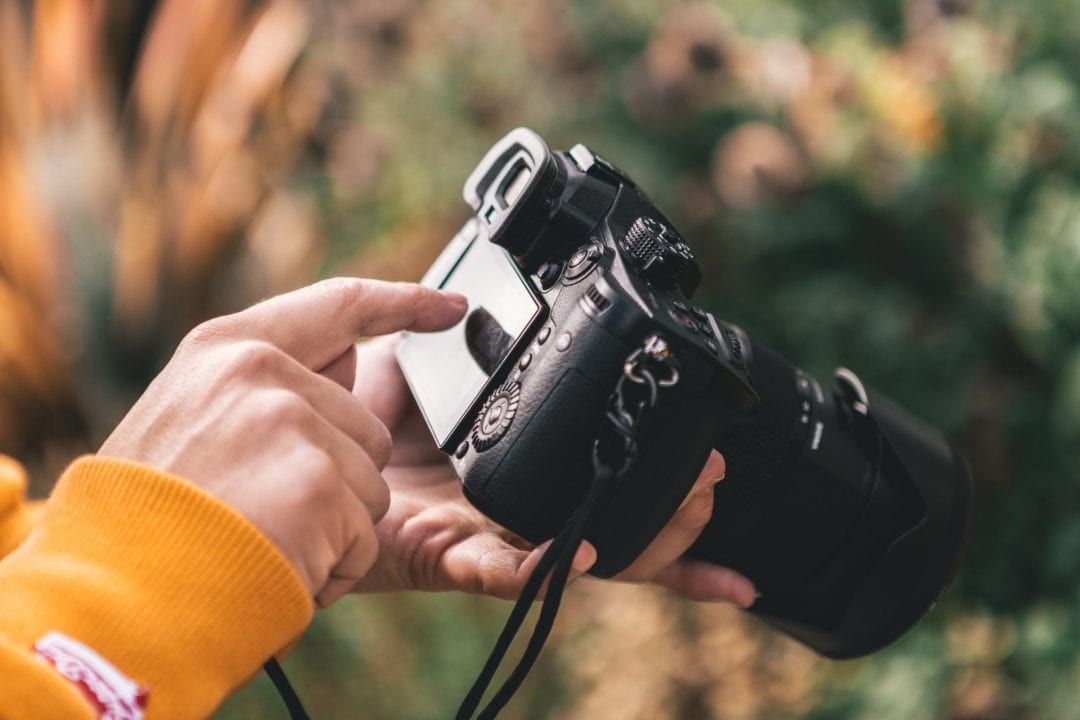
Significant improvement in smartphone cameras combined with increased mobile device usage means we’re getting more people asking us for the fastest option for uploading their photos from their mobile devices to their blogs.

Here’s a few different ways you can do it!

Using a blogging app

There’s a wide range of blogging apps available for smartphones, iPads and android tablets.

They vary considerably in terms of ease of use and functionality.  You can read our review of iPad blogging apps here.

Personally I’ve found they can vary in terms of reliability – an app that works well previously can suddenly experience problems (but maybe it is me since I do have a lot of blogs connected to my apps?).

The best option for quick image upload is probably the WordPress app which you can download for free.

To be able to use any blogging app XML-RPC first needs to be enabled.

XML-RPC is automatically enabled on Edublogs.org blogs if you are using an Edublogs Pro blog or a blog which has had extra features enabled using an Edublogs Pro blog.

If you are using an Edublogs Campus (and most likely WordPress) blog you’ll need to enable XML-RPC within your blog dashboard in Settings > Writing.

You aren’t able to enable XML-RPC on free Edublogs.org blogs.

When adding your blog to any app you need to select the self-hosted WordPress blog option for your Edublogs or Campus blog.

Below’s a quick overview of the post interface to help you.

All you need to do is click on Add Image to insert an image into your post.

Using a mobile web browser

You can choose to write posts directly within your blog dashboard using your web browser on your iPad.

For the most part everything works pretty well except you need to be aware of the following:

  1. You can only write using the HTML editing mode as the visual editor isn’t supported by an iPad.
  2. You’ll need to use a browser like iCab mobile as most of the mobile browsers don’t support the upload of images.  Uploading images using the web browser on an Android isn’t possible.
You would use this type of option if students are sharing mobile devices and need an option that allows students to log into their own accounts.

However, there’s still a trick to inserting images using iCab mobile.

Here’s what you need to do:

  1. Click on the ‘Add Image’ icon
  2. Select and upload your image
  3. Click on Show next to the image you uploaded
  4. Copy the Link URL
  5. Click back in the web browser toolbar to return to your post
  6. Click on ‘img’ and paste your Link URL

Posting by email using Flickr

Posting by email to your blog using Flickr is a really cool and simple if you use Flickr.  This is a really handy option for when you’re out or if you have multiple students posting to a class blog.

All you need to do is first set up your Flickr account to upload by email to your blog.

It’s as simple as:

1.  Log into your Flickr Account.

2.  Go to Sharing and Extending tab under your Accounts.

3.  Click on More Sites and Select WordPress.

4.  Add your blog details and click Next.

5.  Click on Edit and then Select Blog Layout.
6. Choose which blog layout option you want to use.
6.  Go to Upload by email to your blog,  set up your blog and click Save.
7.  You’ll now see the email address you need to use to post to your blog.
8.  Add this email address to Contacts on your mobile device.
9.  Now all you need to do is go to Photos on your mobile device and select the photo you want to upload.
10.  Then just select Email  photo, add the Flickr email address, your subject line and your text then press Send.
  • Tip:  Only text written above the image in the email will be posted onto Flickr and your blog.
11.  Presto!  When you look at your blog you’ll now see your post.

Everything YOU should know about enhancing posts with images

Instead of ‘Where’s Wally’ we’ve had a case of ‘Where’s Sue?’

Sorry but I’ve been really busy writing bi-weekly posts on our Teacher Challenge blog.

So I’ve decided that you’d might like to see that types of posts and activities we’ve been doing on Teacher Challenge blog by cross-posting our post on Enhancing posts with images here.

I’ve kept the post as is so you can see exactly how participants are stepped through tasks.

But first I’ll tell you a bit more about the Teacher Challenge!

About the Teacher Challenge

Teacher Challenge blog is where we do free 30 day professional development challenges that step participants through weekly tasks that increase their skills while working together as part of a global community.

The Challenge is open to anyone who wants to increase their skills – blogs are used for reflecting your progress while learning and connecting with each other.

However blogs don’t need to be hosted by Edublogs to participate!*

Participants can complete as many of the tasks as they like and in any order.  And if you missed out, it is never too late to work through the challenges at your own pace!

Our first Challenge was 30 Days to Kick Start Your Blogging and here’s where you’ll find the Beginners posts:

  1. Kick Start Activity 1 – Beginner – Setting Up Your Blog
  2. Kick Start Activity 2 – Beginner – Effective and engaging blog posts
  3. Kick Start Activity 3 – Beginner – Introduction to working with pages
  4. Kick Start Activity 4 – Beginner – Connecting with others
  5. Kick Start Activity 5 – Beginner – Enhancing posts with images
  6. Kick Start Activity 6 – Beginner – Enhancing posts by embedding media
  7. Kick Start Activity 7 – Beginner – Getting more out of widgets
  8. Kick Start Activity 8 – Beginner – Building readership and blogrolls

Our current Teacher Challenge is 30 days to get your students blogging

Kick Start Activity 5 – Beginner – Enhancing posts with images

A picture tells a thousand words.

Effective use of images grab your readers attention and encourage them to read your posts.

While a copyrighted image can grab the attention of the person whose copyright you’ve broken — and cause you considerable pain :(

In this fifth activity you will:

  1. Be introduced to copyright
  2. Learn about using Creative Commons images in posts
  3. Find Creative commons images and add them to a blog post
  4. Learn about uploading photos from digital cameras
  5. Learn about other way of creating your own images
  6. Write a blog post that includes images
  7. Visit the Discussion question for activity five
  8. Complete the extension activity (if you have time).

Step 1: Introduction to Copyright and using Images in posts

You can’t just use any image you like in a blog post.

Why?  Because unless stated otherwise the law automatically grants full “copyright” over any creative work a person makes.

And if you’re thinking Fair Use Laws.  Forget it!

It’s only really applicable in USA and won’t protect you from the rage that can be unleashed by someone whose copyright has been broken.

So what’s the solution?

  1. Use Creative Commons images
  2. Use your own photos
  3. Create your own images using a range of different tools

Step 2:  Using Creative Commons Images in posts

Creative Commons images are the safest way to source images online for blog posts.

Introduction to Creative Commons

Creative Commons, founded in 2001, is an organization which provides free content license known as a creative commons license that people can apply to their work.

When you license your work with creative commons, you are giving people the permission to use it without having to ask permission, provided they use it in the manner stated in your creative commons license.

The reason people use creative commons licenses is to make it easier for everyone to share and adapt creative work without the concern of copyright infringement.

Creative commons licenses are used for books, websites, blogs, photographs, films, videos, songs and other audio & visual recordings.

And for those that are wondering, unless a blogger includes a Creative Commons license, all content on that blog is automatically the copyright of the blogger.

Creative Commons images and Flickr

One of the most common sources of Creative Commons images used by bloggers is Flickr (an online photo sharing website).

Unfortunately many assume Flickr images are licensed under creative commons and allowed to be used.

This isn’t the case; images marked as “All Rights Reserved” are copyrighted and require permission from their creator.

Images marked as “Some Rights Reserved” means a creative commons license applies.

If you look at images directly on Flickr always check to see which license applies to ensure you only use the image in the manner specified by the license.

Checking the license on Flickr

Here’s a summary of what the Creative Commons license’s mean on Flickr:

Summary of Creative Commons licenses

Creative Commons and Image attribution

It’s a requirement of all Creative Commons Licenses that you attribute the original author.  This means you can’t just use a creative commons image without acknowledging the person who originally created it.

Within or at the end your blog post you must attribute the image and you must link the photo back to it’s original photo page.  We’ll show you how to do this soon!

Step 3: Finding Creative commons images and adding them to a blog post

There are several online tools that make searching Creative Commons Flickr photos less time consuming.

Here’s a couple of quick options:

  1. Compfight
  2. FlickrCC
  3. Wylio.com

Other sources of Creative Commons images include:

  1. Wikimedia Commons
  2. Search by Creative Commons

Here’s how to search and add images to posts using Compfight

1.  Go to Compfight

2.  Change to Creative Commons only, choose whether to search tags or text, add your search term and click Search.

Change your Compfight settings

3.  Scan through the search results and click on the Photo you like so that you can view it on its photo page on Flickr.

Flickr photo page

4.  Scroll down right hand side of photo page to view License.

5.  Hold your Ctrl key and left mouse click on “Some Rights Reserved” to open up the license on a new browser tab to read terms of its license on Creative Commons.

  • Only use if license is applicable for your situation.

Checking the license

6.  Now select View All Sizes from the drop down Action list and select the size of the photo you want to use.

View all Flickr Photo sizes

7.  Right click on Image and select Copy Image Location or Copy Image URL (depends on what web browser you are using).

Copy Image URL

8.  Now go to the post you are writing inside your dashboard and click on Add an Image icon

9   In the Add an Image window click on the From URL tab
10.  Add the image URL, image title, select the image alignment, add the URL of its Flickr photo page to the Link Image URL field and then click Insert Into Post

  • In this example the URL of its Flickr photo page is http://www.flickr.com/photos/53611153@N00/309709280/
  • You link to its Flickr photo page as it is a requirement of Flickr’s conditions of use and so that if any one clicks on the photo they can view the original source of the image.

Adding an image from Flickr to a post

11.  Add the photo attribution either below the photo or at the end of your blog post.

  • It’s a requirement of all Creative Commons Licenses that you attribute the original author.
  • This means you can’t just use a creative commons image without acknowledging the person who originally created it.
  • The text below this photo is are examples of how you can attribute an image — look closely at what websites the attributions links to!

Example 1:

Photo by Darwin Bell licensed under Creative Commons Attribution 2.0 Generic.

Example 2:

Original image: ‘swinger_girl_01b‘
http://www.flickr.com/photos/82546262@N00/205492421
Released under an Attribution-NonCommercial-ShareAlike License

Original image: ‘a piggy in the middle

a piggy in the middle

Released under a Creative Commons Attribution 2.0 Generic License

Please note:

  • Some School Districts block Flickr
  • In these types of  situations you’ll need to download the photo onto your computer and then upload it to your blog post.

Step 4: Uploading photos from digital cameras

Our digital cameras are designed for printing good quality photos and not for uploading directly into blog posts.

A photo from a digital camera can be as large as 2.4 MB, it’ll unnecessarily use up your blog storage space and take longer to load your image compared to an image that is resized before uploading.

It’s really important to resize them before uploading to your blog post.

The best option is to resize the photo to:

  1. 450 pixels wide – if you want it to take up the full width of your post area
  2. 150-200 pixels – to left or right align the image with wrapped text

Here’s some tools you can use to resize your photos:

  1. InfraView – here’s how you do basic image editing using irfanView
  2. Picasa – here’s instructions on resizing your photos using Picasa
  3. Picture Manager – here’s detailed instructions on how to use Picture Manager
  4. PIXresizer – Here’s instructions for resizing images using PIXresizer.
  5. iPhoto

Now your photo is resized uploading into your blog post is as simple as:

1.  Click on Add an Image icon

2.  In the Add an Image window click on the Select Files button

3.  Locate the images on your hard drive (use your Shift or Crtl key to select more than one image).

4.  Click Open to start uploading the images.


5. While your images are uploading you will see a progress bar.

  • If you upload more than one image you will need to click on the Show link to edit the image details and insert an image into a post (see below for instructions for inserting a photo gallery).

6.  In the image option screen you need to (see below for more details on each of these option):

  • type a title for the image
  • choose how you want the image align (None, Left, Center or Right)
  • select size of image you want to insert (Thumbnail, Medium, Large or Full Size)
  • and then click Insert into Post

7.  Your Add an Image window should be closed and your image should now be inserted in your post.

Step 5:  Other ways of creating your own images

Other options for creating your own images include:

  1. Image Generators such as ImageGenerator.org
  2. Comic Generators like MakeBeliefsComix.com,  kerpoof, ToonDoo
  3. Photo Editors like Befunky, fd’s Flickr Tools
  4. Tag Cloud Creators such as Wordle
  5. Graph Creators including GraphJam and Crappy Graphs

Mixing up your images using these types of tools can really spice up your posts!

We hope you have fun trying some of them out!

Step 6:  Write a blog post that includes images

Now we’ve talked about images it’s time for you to show us your skills by writing a blog post that includes images.

Here’s some ideas of what you might like to write about:

  1. Share what you have learnt about Creative Commons and finding Creative Commons images.  Tell us about your favorite sources of Creative Commons images.
  2. Share your tips of creating your own images.
  3. Write a review on ways of creating your own images using a range of different types of tools.
  4. What you’ve learnt from watching how other bloggers use images in their blog posts.

Don’t forget to include images in your blog post!

And remember to leave a comment with a link to your post so we can drop past to check it out!  We like to include these links to your posts in our weekly reviews!

Step 7:  Visit the Discussion question for activity five

Step 8: Extension Activity  – the WOW! factor

Add a photo of your own to befunky or irfanview, use as many of their editing features as possible to change the look of your image completely and give it the ‘Wow’ factor ie the audience who looks at this image would just say ‘”Wow’! How did you do that?”.

Add it to your post and explain what software and features were used.

Final Thoughts

Some readers have commented that blogging in another location is making it harder for them to find my posts.   Would love to hear your thoughts?

Would you like us to be cross-posting the posts from the Teacher Challenge blog onto The Edublogger?  Would that make it easier?

If you are enjoying reading this blog, please consider feed-icon32x32 Finding and Adding Creative Commons Images To Your  Blog PostsSubscribing For Free!

Teaching students about Creative Commons and appropriate use of images

Kathleen McGeady has shared some great advice on teaching students about on appopriate use of images and has given me permission to cross post it here.

What inspires me about her post is her attitude that there are important skills everyone needs to learn and you’re never too young to learn them.

Please note:

The background

2M class blogA few weeks ago I set up blogs for two of my most enthusiastic student bloggers, Rhiannon and Bianca.

I chose these students as they regularly left comments on our 2KM class blog and were committed to learning as much as they can about blogging.

After gaining their parents’ permission, I set their blogs up, adding myself as an administrator.

I had a discussion with Rhiannon and Bianca about what they’re going to blog about and how often they’ll post.

We then revised the features of quality posts as well as revising the cyber safety and netiquette guidelines they were already familiar with.

After some initial familiarisation sessions my students were off and it didn’t take them long to learn the basics of blogging.

Check out:

  1. Rhiannon’s blog
  2. Bianca’s blog

Before long, my students were keen to use images off the internet to enhance their posts.

Example of post with imageThis was a dilemma for me.

While my students are only in Grade Two and I don’t want to make blogging too complex for them, I knew that I would have to delve into the topic of copyright and Creative Commons to help my students develop good blogging habits.

Little do many people know, you can’t just use any images off the internet in your blog posts. Not only is this ethically incorrect but you could leave yourself open to copyright infringement.

Explaining Creative Commons and using images in blog posts

Wanting to make this process clear to my students, I typed up a document explaining copyright, copyright infringement and Creative Commons while also offering step-by-step instructions on how to use FlickrCC to upload and attribute images in blog posts.

Obviously, there is more than one way to do this but given the age of my students, I wanted to keep things as straightforward as posssible.

I’ve embedded this document below:

Feel free to use it with your students to teach them about these important blogging habits. (Please Note:  the instructions for uploading the image to a blog post apply to Edublogs blogs)

My approach to Student blogging

One of the things I love about teaching seven and eight year olds is that I can teach them about issues such as copyright, cyber safety, netiquette, social networking etc just before they reach the age where they would dive into these areas, prepared or not.

I feel like I can make an impact in setting my students on the right path for their futures.

I am constantly amazed at how my students respond when I challenge them and engage them with ICT and their results across the board never fail to impress me.

Set your standards high, provide the structure and the support that your students need to scaffold their learning and reap the rewards!

Final Thoughts

Thanks Kathleen for letting me share your post here.

Pleae make sure you drop past Kathleen’s post and share your thoughts on:

  1. Will the how-to document be useful for you and your students?
  2. Do you have any questions about blogging or using internet images?
  3. What results have you seen from using ICT and setting high standards for your students?

If you are enjoying reading this blog, please consider feed-icon32x32 Finding and Adding Creative Commons Images To Your   Blog PostsSubscribing For Free!

Here’s My Top Five Mistakes Made By New Bloggers — What Are Yours?

Ever felt like you wished some one had told you about what mistakes NOT to make when blogging before you MADE the mistake?

Well I know I have so here are my five top mistakes made by new bloggers:

#1 Copying and pasting text written in Word into blog post

When you copy and paste text from MS Word, emails, other word processor applications, websites etc into blog posts it transfers extra code which you normally won’t see unless you click on the HTML tab.  Trouble is you mightn’t be seeing this code but your blog might.

This extra code cause problems including changing font size and type, messing up the appearance of your blog sidebars and stopping your blog from loading in Internet Explorer.

Read Why you shouldn’t write your blog posts in Word to learn more!

#2 Using copyright images in blog posts

While a picture is worth a thousand words getting into trouble by using copyrighted images isn’t!  Just because an image is on the Internet doesn’t mean you are allowed to use (even if using it for educational purpose).

Read Copyright and Using Images in Blog Posts to learn more!

#3  Uploading images from digital cameras without resizing

Just because you can upload images directly from your digital camera into a blog post doesn’t mean you should!  Besides taking longer to upload your image, it uses up blog storage space unnecessarily.

To learn more read:

  1. How to resize images before uploading
  2. Image widths in blog posts
  3. Is a picture always worth a thousand words?

#4 Forgetting to Link

Linking is a really important part of being a blogger and linking isn’t hard but for some reason most new bloggers forget to link!

It’s good blogging etiquette to link to:

  1. A person’s blog if you mention a blogger
  2. The post if you are talking about a particular post on a blog
  3. Articles and websites when you write about them

To learn more read:

  1. STOP! Don’t Press Publish! Have You Remembered to Add The LINKS?
  2. What’s A Pingback? And How To Write Links

#5 Copy and pasting other bloggers posts

Sure it is nice to like another bloggers post BUT you can’t copy and paste their entire post into your own blog post!  Besides the fact you might be breaking copyright, this is both plagarism and extremely bad bloggers etiquette.

Would you accept students work that had been copied? NO! So don’t do it to other bloggers.

FINAL THOUGHTS

These were my five top mistakes that new bloggers make!  What have I missed?  What else do we need to warn new bloggers about?

I plan to follow up with a more detailed post on Why you don’t copy and paste other bloggers posts!  What advice would you give new bloggers on this topic?

Image by skoczek licensed under Creative Commons ShareAlike 2.0.

If you are enjoying reading this blog, please consider feed-icon32x32 Finding and Adding Creative Commons Images To Your Blog PostsSubscribing For Free!

Taking The Agony Out Of Using Custom Image Headers

Are you like me?  Driven by a strong desire to add that individual touch to your blog using a custom image header?  But through not fault of your own designing your own image header always turns out BAD?

There is a solution! Instead of trying to design your own image header visit Free Web Page Headers.  All their image headers are provided under Creative Commons Attribution Non Commerical license.  This means you can use them, with adaptation if you desire, provided you acknowledge the original source and don’t use them for a commerical purpose.

This is how I did it on my personal blog:

  1. Searched Nature category on Free Web Page Headers looking for a header with adequate space to add words to left hand side of header
  2. Downloaded Yellow flowers by DHester onto my computer Image of yellow flowers
  3. Opened up image in PhotoShop, added desired words to image and adjusted image size to recommended image size for my blog theme (970 x 140 pixels)Image after adding words
  4. Uploaded new custom image to blog (Design > Custom Image Header)Image of uploading custom header
  5. Added a text widget to blog sidebar with HTML code to provide required image attribution

Image of attribution used

FINAL THOUGHTS

Check out these posts for:

  1. Edublogs themes that have custom image headers
  2. Edublogs themes that have custom image headers and allow comments on pages

You can use Free Web Page Headers as they are without adding text.  There are numerous free photo editing tools that you can use in place of PhotoShop.  What free photo editing tools would you recommend?

If you are enjoying reading this blog, please consider feed-icon32x32 Finding and Adding Creative Commons Images To Your Blog PostsSubscribing For Free!