DIY Decorating Your Blog for Any Holiday or Season

It’s that time of the year again when people get creative and start decorating their houses for the festive season. Everyone loves Christmas decorations, but did you know that you can get just as creative with decorating your blog?

With so many options now available, we’ve decided to show you how easy it is to decorate your blog for any holiday or season!

We’ve also set up a demo blog so you can check out what a live blog looks like when you use different options to customise with a particular feel!

Adding a Custom Background

Most themes now allow you to set your own custom image header and custom background.

Yet most people are unaware of how easy it is to add a custom background to achieve a more customised look while adding a personalized touch to their blog.

The first step is to search for a free background you’d like to use.  Numerous websites provide a wide range of suitable free images and backgrounds.

Here’s some sites to get you started:

  1. Free Christmas Wallpapers
  2. Webweavers Free Clipart
  3. Free webimages & Clipart
  4. Background Labs
  5. Layouts for Christmas
  6. Christmas Free 4 All
  7. Animated Gif Net
  8. Cartoon Cottage

Once you’ve located an image you would like to use, all you need to do is right mouse click on the image and select Save Image As (or Save Picture as) to save a copy of the image onto your computer.

Now uploading your background is as simple as:

1.  Go to Appearance > Background inside your dashboard.

2.  Click on Choose File, select the image you want to upload and then click Upload.

3.  Once it is uploaded select your preferred display option and then click Save Changes.

And when you check your blog you should now see your new custom background!

Student bloggers often like using an animated gif for their background.  All they need to do is locate the animated .gif they want to use, save it onto their computer the same as you would save any other image, and then upload it as a background.

Of course, animated gifs can be a bit overwhelming when used as a background and Ronnie made me remove my pretty ones :(

Adding a Custom image header

Custom image headers, like backgrounds can really add to the look and feel of a blog.

You can easily make your own or search for a free image header to use.

Here’s some sites to get you started:

  1. Guides & Tips Bogger
  2. Free Christmas headers
  3. Free Web headers
  4. Free Header images
  5. Theme headers

Once you’ve located an image you would like to use all you need to do is right mouse click on the image and select Save Image As (or Save Picture as) to save a copy of the image onto your computer.


Tip:

  1. For the best quality use the recommended image header dimensions for your chosen theme (recommend size for your theme is displayed on Appearance > Header)
  2. I use Snagit to resize and adjust my image headers to the correct size before uploading.

Now uploading your image header is as simple as:

1.  Go to Appearance > Header inside your dashboard.

2.  Click on Choose file, browse for the image on your computer and then click on Open.

  • Only .jpeg, .gif, and .png files can be used for image headers.

3.  Next click Upload 

4.  Your image will upload and if it isn’t the exact dimensions you’ll need to select the area you want to crop and then click Crop and Publish.
<
And when you check your blog you should now see your new custom image header!

Adding widgets to your sidebar

There are lots of seasonal widgets you can add to your sidebar.  Widgetbox provides the best selection of Christmas widgets.

You can check out the widgets I liked in the sidebar of our demo blog.  I also added a mixpod widget of Christmas music (student’s love music players on their blogs).

Please note you need to be using an Edublogs Pro blog, Edublogs Campus blog or have had extra features enabled on your blog by a Pro blog to be able to add embed code.

Adding a widget to your sidebar is as simple as:

1.  Copy the embed code for the widget.

2.  Go to Appearance > Widgets in your dashboard.

3.  Click on the sidebar to expand it (so you can add the widget).

4.  Drag a text widget from the Available widget area into the sidebar area.

5.  Add the embed code to the text widget and click Save.

And when you check your blog you should see your new widget!

Enhancing your posts with embedded media

There’s a gazillion tools that you can easily embed into your posts that can create some great seasonal activities and fun.

Please note you need to be using an Edublogs Pro blog, Edublogs Campus blog or have had extra features enabled on your blog by a Pro blog to be able to add embed code.

I’ve added a selection to our demo blog so you can see how you could use them:

  1. Christmas Trivia Fun – from Widget box
  2. Christmas Glogster – get your students to create their own Christmas Glogster
  3. Christmas VoiceThread – create your own VoiceThread
  4. Christmas LiveBinder - packed full of ideas and Christmas activities
  5. Christmas AnswerGarden
  6. Christmas Quizzes – get your students to create their own quizz!
  7. Christmas Picture Puzzle – from Widget box
  8. Christmas Coloring pages
  9. Festive Turkey scoffing game – from Widget box
  10. Singing Christmas countdown – from Widget Box
You’ll find a comprehensive list of popular web tools to embed here!

 Adding them to a post is as simple as:

1.  Completely write your post including the title, text, images, tags and categories.

2.  Click on Save Draft, preview your post and make all necessary edits.

3.  Go to the online tool you want to use and copy the embed code.

4.  Click on the HTML tab in your write post area.

5.  Paste the embed code into your post where you want it to appear then immediately click Publish

  • Don’t click back to Visual Tab before hitting Publish as it can break the embed code.
  • Immediately close your post once you’ve published.
  • Change back to Visual Editing mode when you write your next post by clicking on the Visual tab.
  • You use this same process for any website that provides embed code.

And don’t forget the longtime-favorite Let It Snow plugin on Edublogs which adds falling snow right on your blog!

Leave a link to your decked-out and holiday-trimmed blog below so we can all get in the festive mood.

Seasons greetings and happy blog decorating!

Using categories to organize multiple classes or subjects on your blog

One of the most common back-to-school questions we have been getting lately has to do with how to use one blog with multiple classes or subjects.

The good news is that our newest custom menus feature makes this even easier!

This is ideal if you want to put up a post or question geared only towards one group of your students. They will see a link for their class in the top menu navigation of your blog, and once they click on that link, they will see only posts meant for them, with the most recent at the top.

Don’t let the length of the instructions fool you – it really is easy to setup, and once it is done, it will last you all school year :)

Step 1 – Choose what should be shown on your “home page”

Option 1 – All posts are shown with the most recent first – this what you are most likely used to

Option 2 – A “static home page” where you place a welcome message or important announcements

What we will be doing is assigning categories to certain classes or subjects. Because of this, you may not want all posts to show on your home page – what people see when they first visit your blog.

If you are ok with all posts, no matter the subject or class, showing together on your home page, then you won’t need to do anything special and can skip right to Step 2.

If you go with the static home page (Option 2), then you will first need to create a new page, just like any other page, and put in the information you want people to see.

Then, go to Settings > Reading in your blog’s dashboard, choose ‘Static Page‘ and in the drop down, select the new welcome page you just created.

Click ‘Save Changes‘.

You will be able to go back and update this page with new announcements whenever you like – but users that have subscribed to your blog feed or by email, won’t receive any sort of notification.

You can also create a new blank page called something like “All Posts”, and choose it under the posts dropdown box so that there will be a place for all posts to be shown on your blog in one place.

Step 2 – Create categories

Go to Posts > Categories and create new categories for each class, year, or subject that you want to appear in your blog’s navigation menu.

You will need a category for every post you write if you are using the static home page from step 1.

As you publish new posts, make sure to assign them to appropriate categories. You will get an error message when you click on a category that doesn’t yet have a post assigned to it. You can also assign a post to more than one category, which is great for news you want to share with all groups.

Step 3 – Create a custom menu

Go to Appearance > Menus and create a new custom menu for your blog.

Once you do this, all of the links at the top of your blog will disappear and you will need to add them back using the custom menu.

Visit our help site on custom menus to learn more, or check out the video below:

Going from here…

If you have this up and working and would like to share, feel free to leave a comment below letting us know!

For more information on setting up a class blog, check out the ongoing Class Blog series on our Teacher Challenges free professional development blog.


Adding the NEW twitter follow button and other twitter widgets to your blog

Just yesterday Twitter launched a new “Follow” button that will make life easier for all of us twitteraholics.

follow

Before now, you had to put a link to your twitter page and then potential fellow tweeters had to click “follow” there. Now, they can do it all from your site with one single click.

He’re an example for my account. Go head – click follow – I won’t mind!


So how do you add one to your blog?

Twitter makes it easy to grab embed code for your own personal follow button here.

We’ll walk you through the steps, but if you want to know more about embedding, you should check out the in-depth post here from our Teacher Challenge blog.

1. Visit the Twitter Resource page for the Follow button

2. Choose from the available options and then copy the code that appears on the right side
twitter

3. Paste the code into the HTML tab of a page or post. A popular place might be to put it on your Contact or About page.

How To Embed In a Sidebar

You can see that we’ve embedded the follow button into the sidebar of this blog on the left side under our photos.

Here’s how to this:

1. Complete steps 1 and 2 from above (which is to go here)

2.  Go to Appearance > Widgets in your blog dashboard

Appearance > Widgets menu item

3.  Click on the desired Sidebar to expand (so you can add the widgets)

4.  Add a text widget to the desired sidebar by dragging it from the Available Widgets into the Sidebar area on the right.

5.  The widget will automatically open — just add the HTML code for your follow button or widget, click Save and then Close.

Adding HTML embed code to voki

6.  That’s it!

What other twitter widgets can you add?

Using the exact same steps as embedding the follow button, you can also add several other twitter widgets too!

All of the different widgets and options can be found here.

Here are a few on display for you too see:

The Profile Widget


The Search Widget


Edubloggers List Widget


Other Twitter Resources

Top widgets for the sidebar of your class or student blog

Note: This post is cross-posted from the Edublogs News blog. If you like what you read, please consider subscribing here.

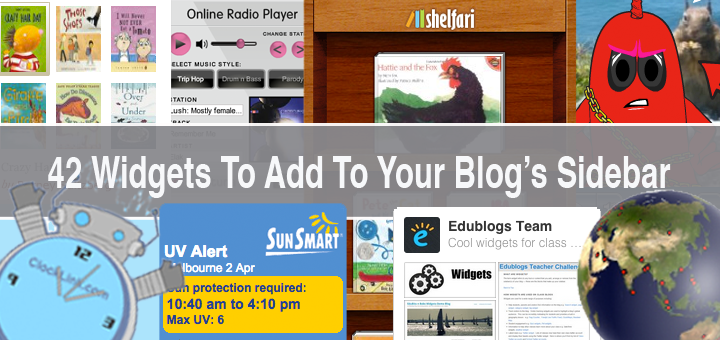
Did you know that the fastest and easiest way to add new features to your blog is by embedding widgets into the sidebar of your blog?

To help you out, here is a list of the most popular and most useful widgets that can be added to your blog in no time.

Scroll down to the bottom of this post for more instructions on how to add widgets to your blog. Don’t forget, these widgets can also be embedded using the HTML tab in any page or post as well!

Visitor Statistics

  1. clustrClustrMaps - The most popular widget on Edublogs.  Displays a small map with “dots” for each of your visitors.
  2. Flag Counter – Lists the most common countries that your visitors are from and shows the flag from each country.
  3. Who’s Among Us – With an account, includes some nice stat collection tools.
  4. My Web Counter – Simple and free visitor counters with many custom looks and designs.

voki

Talking Avatars

  1. Voki - Add a speaking and highly customizable avatar to your blog.  Record you voice, create a character, and much more!
  2. Read The Words – Human avatars that will read text or recorded audio right in your blog.
  3. Site Pal – A paid widget that can make scarily realistic avatars using uploaded photos of you or students.

Miscellaneous

  1. Clock Link – 100′s of different and unique clocks of all types.
  2. AccuWeather – The most complete collection of weather widgets to show current conditions and forecasts.
  3. Box.net – Create a file dropbox or upload widget for students to submit files for your review.
  4. Feed Wind – Display the latest posts from another blog anywhere on the web.
  5. Sweet Search – Place a search box for a trusted and safe for students search engine.

googapps

Google Apps

*These widgets also will all work with Google Apps for Education users too!

  1. Google Calendar – Embed a list of upcoming events or a month view of a public Google calendar.
  2. Google Talk Chatback – Put a badge in your sidebar that lets users chat with you live when you are online. Your blog’s visitors don’t even need a gtalk account to chat with you.
  3. Google Maps – Embed a Google map – complete with directions, street views, and more.
  4. Google Gadgets – Choose from hundreds of different widgets, including games, trivia and more.

Multimedia

  1. schooltubeFlickr Slideshow and Badges - Easily add photos from your flickr account to your sidebar.
  2. Facebook Photo Gallery - Show off your public facebook photo galleries right on your blog.
  3. SchoolTube MVP - Share popular videos from SchoolTube.com with easy sidebar access.
  4. YouTube - Place in YouTube channels or top trending videos.
  5. Mixpod – Create a music play list and share it on your blog.
  6. RadioTuna – Pick a genre and play music for your visitors.

Languages

  1. wordofdayGoogle Translate – Instantly translate your blog into many different languages.
  2. Transparent.com Word of the Day – Audio and visual word of the day. Customizable in many of the world’s languages such as Spanish, French, German, Chinese and many more.
  3. Reverso Translation – Translorts, verb conjugators, and more in many different languages.

Reading

  1. Shelfari - Show off your favorite books for others to see.
  2. Education Atlas – Free thesaurus and dictionary widget with many features.
  3. SitePal Widgetbox – Mentioned above, but this widget will allow readers to type in or copy and paste words to be read out loud.

Science & Math

  1. convertScience Score – A science question of the day. Students can even enter to win prizes.
  2. Wolfram AlphaQuite possibly the best resource on this list – Wolfram Alpha contains hundreds of customizable math and science widgets, including unit converters, weather tools, graphing calculators, problem solvers, and much more. This might be the only resource math and science students and teachers need for their blogs!

History

  1. Info Please – Nice looking “this day in history” widget that displays multiple events and updates every day.
  2. Timeline Index – 30 different timelines showcasing several different periods of history – including US presidents, world history outline, philosophers, and explorers.

Widget Sites & Collections

  1. widgetboxWidgetBox.comThe definite go-to place to find and build your own widgets. Edublogs uses several widgets from here on our main site!
  2. SpringWidgets.comAnother great source for widgets from many of your favorite sites on the web. User reviews and comments help you find the perfect widget for your blog.
  3. Widgipedia.comLike the two sites above, wigipedia is a huge and growing collections of widgets of all types and sizes.

How To Embed

1. Choose the widget of your choice and copy the html code for it.

2.  Go to Appearance > Widgets in your blog dashboard

Appearance > Widgets menu item

3.  Click on the desired Sidebar to expand (so you can add the widgets)

4.  Add a text widget to the desired sidebar by dragging it from the Available Widgets into the Sidebar area on the right.

5.  The widget will automatically open — just add the HTML code for your widget, click Save and then Close.

Adding HTML embed code to voki

6.  You should now see the widget in your blog sidebar!

Related Links

Since there are thousands and thousands of widgets to use, we are certain to have overlooked a few of your favorites.

Leave a comment below with any that we missed so that we can add to the list!

Here’s My CHEATS Method For Adding Images to Blog Sidebars

I’m frequently asked how to add images to blog sidebars — so I thought it would help to share my quick and easy cheats method.

So what do you need to know to do this?

To start with you need to understand that you need to:

  1. Write HTML code which links to the location of your image
  2. Add your HTML code to a text widget in your sidebar

Now that I’ve said blah blah HTML code twice…you’re probably thinking that I’ve made it too hard already.

It’s not but I first need to explain what is HTML code and then show you it’s really easy when you know my trick 8-)

What is HTML?

HTML is short for “Hyper Text Markup Language” which is a language used to tell a browser how to organise the layout of a web page it has downloaded from the Internet.  It influences if text is bold, italics, a heading, bullet points.

When you write a post or page inside your blog dashboard you don’t worry about how to write HTML because the Visual Editor does it for you. If you click on the HTML tab it shows the HTML code in your text.

Here’s the Trick!

As I said you need to use HTML but that doesn’t mean you can’t cheat with writing the HTML code.

Instead use your Visual Editor to do the work for you!

Cheating is as simple as:

1.  Open up a draft post in your blog dashboard
2.  Click on Add an Image to upload your image to the post

  • Ideally resize your image before uploading to 170 pixels wide because this generally the best width for most blog sidebars

Add an image icon

3.  Insert the title for your image (this displays when a reader hovers their mouse over the image)

4.  Change the link URL — if you want to link your image to a website

Uploading the image and adding the required info

5.  Click on Insert into Post

6.  If you want to add any text below your image — just write it!

Adding text below your image

7.  Now click on the HTML tab and copy all the HTML code.

Code the HTML code from the HTML tab

8.  Go to Appearance > Widgets in your blog dashboard

9.  Click on the desired Sidebar to expand (so you can add the widgets)

Please note: In new blogs sidebars in your dashboard are empty and adding widgets automatically removes the default Edublogs widgets

Expand your sidebar area

10.  Add a text widget to the desired sidebar by dragging it from the Available Widgets on the left into the Sidebar area on the right.

Adding a text widget to your sidebar

11.  The widget will automatically open — add a title to your widget, paste the HTML code and click Save

  • If you want to insert lines for better text spacing you need to add the HTML code <br/ > (means insert line break)

12.  When you check your blog you should now see it nicely displayed in your sidebar!

Image in blog sidebar

Enjoy!

P.S. Don’t share this tip with Larry Ferlazzo as he pays me in chocolate for each image I add to his blog sidebar 8-)

If you are enjoying reading this blog, please consider feed-icon32x32 Finding and Adding Creative Commons Images To Your   Blog PostsSubscribing For Free!