Lots of people have been asking me about RSS feeds and Feedburner over the past few weeks.
So I’ve decided it’s time to update my ‘how to’ Feedburner info so that:
- All the required instructions are in one post
- It is current for the latest version of Edublogs and Feedburner
What is RSS?
The easiest way to receive latest posts from your favorite blogs is to subscribe to RSS using feed readers such as Google Reader, Bloglines, NetVibes.
RSS (means Really Simple Syndication) retrieves the latest content from the sites you are interested and pulls them into your feed reader where you can read them all in one location rather than visiting each site separately.
Watch RSS in Plain English to learn more! 
The presence of the orange RSS icon indicates a site has an RSS feed and means you can subscribe to it using a feed reader.
What is FeedBurner?
Most blogs have RSS feed which is detected automatically by commonly used feed readers when the blog URL is added to the reader.
However, if you want to make it more obvious and easier for readers to subscribe using RSS, or want to know exactly how many people subscribe to your blog then the best option is to add a Feedburner RSS feed and email subscription to your blog.
Feedburner is a free web service which enhances bloggers and podcasters ability to manage their RSS feeds and track usage of their subscribers. 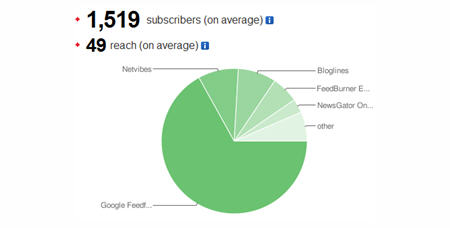
Setting Up Your Feedburner Feed
1. Go to Feedburner and sign in to Feedburner with your Google Account (create a Google Account first if you don’t have one!).
2. Add your Blog URL to the Burn a Feed Right This Instant and click Next.

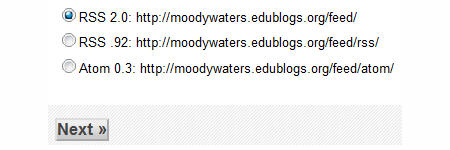
3. Leave RSS 2.0 source selected and click Next.
4. On “Welcome” page, make sure you are happy with the title and FeedBurner address (URI) of your new feed and then click Next. 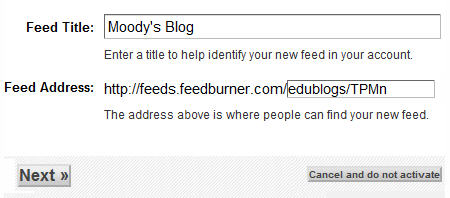
5. On the Congrats! page click Next
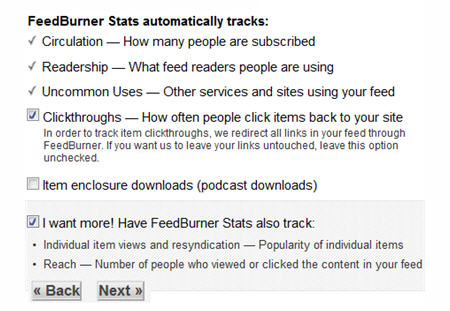
6. On the stats configuration page select Clickthroughs and I want more! and then click Next.
Adding Your Feedburner Feed To Your Blog
This is used to add the RSS icon and easy subscribe options to your blog side bar using a text widget as explained below:

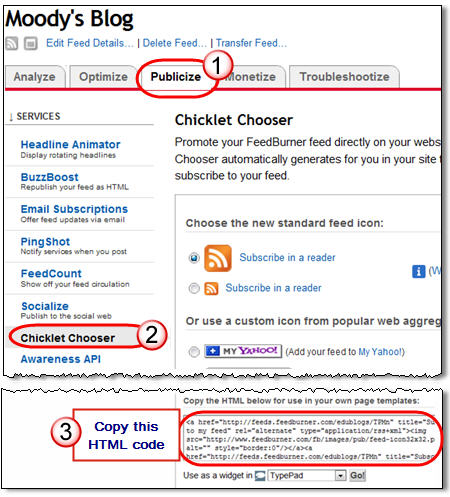
1. Click on the Publicize Tab > Chicklet Chooser in your Feedburner account and copy the HTML code.
2. Go to Appearance > Widgets in your blog dashboard
3. Click on the desired Sidebar to expand (so you can add the widgets) Please note: In new blogs sidebars in your dashboard are empty and adding widgets automatically removes the default Edublogs widgets 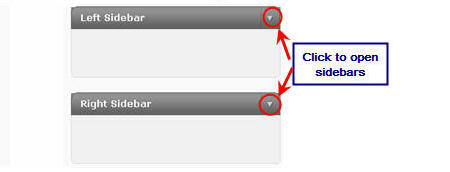
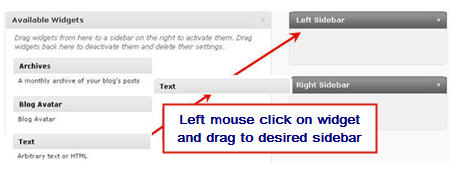
4. Add a text widget to the desired sidebar by dragging it from the Available Widgets into the Sidebar area on the right.
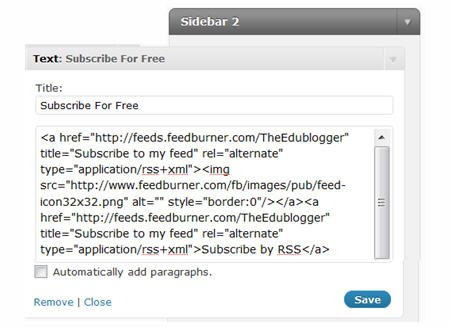
5. The widget will automatically open — just add the HTML code from FeedBurner, click Save and then Close.
Adding a FeedBurner Email Subscription
It’s important to add an email subscription option to your blog sidebar as some readers prefer to receive latest posts from blogs using email subscription.
1. Click on the Publicize Tab > Email Subscription in your Feedburner account and click on Activate.

2. Copy the HTML code.

3. Go to Appearance > Widgets in your blog dashboard
4. Click on the desired Sidebar to expand (so you can add the widgets)
5. Add a text widget to the desired sidebar by dragging it from the Available Widgets into the Sidebar area on the right.
6. The widget will automatically open — just add the HTML code for Feedburner email subscription, click Save and then Close.
7. Now readers simply enter their email address and then click on “Subscribe” and Feedburner emails your entire post to them on the day after it has been published on your blog.
Redirecting All Your Blog Feed To Feedburner
Unless you redirect all your blog feed to Feedburner you won’t get accurate subscriber numbers because some of your readers subscribe using your original blog feed.
If you’re an Edublogs supporter you can redirect your blog feed as follows:
1. Go to Settings > Feedburner in your blog dashboard
2. Add your Feedburner address and click Save Changes.
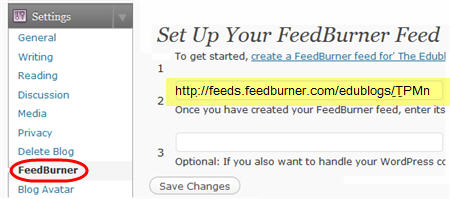
3. Now all your feeds is automatically redirected through FeedBurner and you’ll be able to track subscriber numbers accurately.
If you are enjoying reading this blog, please consider  Subscribing For Free!
On my theme the default code makes feedburner optin so distorted 🙁
Actually I use feed burner email subscription but when i post any blogs, my subscriber get full blog details, mins I think email subscription just notified the title of blog but in my case it shows all articles, images, all things. So then why my subscribers visit my site when the see all post in his email..
Hi. Is there a way I can manually remove the Captcha
requirement from the Email Subscription box that pops up?i
I have not heard of any way to do this, Nelson. Unfortunately Google hasn’t updated Feedburner for many years.
Thank you SO MUCH! For some reason, the widget I was using wasn’t working with feedburner. It was cuter and more customize-able, but I think I will have to use this one. At least now I can have subscribers! Thank you for this post!
That’s great to hear, Amit. Hope your subscribers enjoy your posts!
I have completed the feedburner setup on my blog.
Thanks the edublogger!
Thank you so much for this explanation. You explained it beautifully. Thanks a lot.
Excellent training. Thank you very much.
However I could not do the last phase. I don’t have the Feedburner option in my dashboard settings.
How do you make it so only part of your blog post shows up in everyone’s email? This way they cannot see the whole post without clicking “read more” in their email. I see this all the time in my emails for blogs that I subscribe to yet my blog post email that is sent out shows the entire blog post so readers don’t have to go to my blog. I would really like to change this. Thanks!
I’d love to know the answer to this too. My entire post gets pushed through my subscribers email, but I’d love for only part of it to send, so they visit my blog to see the entire post. Any advice?
ALL the feedburner blogs that I have subscribed to have disappeared AGAIN!!!! I am subscribed to A LOT of card making blogs through feedburner, but they suddenly stopped coming in my e-mail about a week ago, AGAIN!!! This is NOT the first time this happened!!! What is going on and how do I get them coming again???? HELP!!!!!!!!!!!!!!!!!!!!!!!!!!!!!!!!!!!!!
Thank you SO MUCH! For some reason, the widget I was using wasn’t working with feedburner. It was cuter and more customize-able, but I think I will have to use this one. At least now I can have subscribers! Thank you for this post!
good
Wonderful..!!! most helpful. what exactly i was looking for.
Many thanks.
Great!!! Excellent post for newbies like me.
Thanks a lot!
Hello there Sue! Thanks for this post as I’ve been trying to find all this regarding feedburner.
After adding FeedBurner to my website, I tried to subscribe with using another e-mail id. Everything went well. It said that I’ve successfully subscribed to the newsletter. But, we I checked my after publishing a post on my Website, I got nothing there in the inbox.
Please help me because I’m not getting any update in spite of being subscribed.
Any help would be appreciated!
Nice info But kindly assist me Identify the problem with my Blog Am overwhelmed by the “Invalid feed “stuff
If you need help, email our support team and they can assist you. [email protected].
I am trying to delete some folks off my feedburner (who signed up) as it is a PRIVATE blog but can’t figure out how to do that. PLEASE HELP
RSS (Rich Site Summary) is a format for delivering regularly changing web content. Many news-related sites, weblogs and other online publishers syndicate their content as an RSS Feed to whoever wants it.
I’ve signed ‘on’ to receive a bloggers ‘blog’ articles. I sign to Activate. Says I’ll receive confirmation via Email. Nothings comes to my Email. I go back to site and seek to get activation again. Nothing happens except a window from WordPress; “cannot locate the site”.
Can you help me out here please. Thank you. Bruce J…..
Sue, this was a very helpful post. I think I’ve got it on my blog now: neoevsmith.blogspot.com
Wow, this just helped me so much! I just couldn’t figure it out, how to set up the Email subscription tool, but now it’s all working, thank you!
Thanks for this useful tutorial.
However i was initially confused at the Blog URL in your second point above.
I thought that it must be the domain name of our website, but later i understood that the blog URL must be a path to an xml file in our website.
Will those currently subscribing to my blog via RSS feed be automatically moved over to the feedburner account? Will I be able to see retrospective data?
Hi Micah,
Your users wouldn’t automatically be signed up via Feedburner, they’d have to do that themselves.
Please note also, this post is now quite old so some details may not be based on the latest information.
Hello! I have feedburner activated on my Weebly Blog and I have about 20% of subscribers who have NOT activated their subscriptions. I have contacted a few of them an they said they never got an activation email?? Help! What can be done here? Is there a way for me to activate them? I have even tried deleting their email from my subscription list, re-entering it myself – hoping they would receive an email – but no, nothing at all. (And not in spam folders either)
Any help would be greatly appreciated!
Hi Toria
Unfortunately if they have entered the correct email address, and the activation email hasn’t been sent to their spam folder, then it indicates that the Feedburner activation email is most likely being blocked by the email domain. Occasionally domains will block from specific domains if they detect too much spam coming from that domain. There is nothing you can do about this because it is something that Google needs to follow up with the email domains (which is highly unlikely they would do).
On Edublogs we use our own email subscription solution and will contact the email domain if this happens to get our domain unblocked.
Sue