Have you speculated if it is possible to embed a Flickr Slideshow in a sidebar rather than in a post? Well Betsy asked because she wants to add one to her Merit School of Music blog.
Your options
The size of most embed code can be adjusted by pasting it into a simple text editor like Notepad and changing its width and height. Really handy to know when you need to make an object smaller to fit the size of your post or sidebar.
However for a Flickr SlideShow there is a simpler option! FlickrSliDR or Flickr slideshow! These “third party’ website lets you use the flickr URL address of the user, photo set or group and tags or any user/group to customise a Flickr slideshow to the dimensions you desire.
Adding a Slideshow to your blog sidebar
Both FlickrSliDR and Flickr slideshow create exactly the same SlideShow; which of the two websites you use is your choice. Width of blog sidebars is dependent on your blog theme; however in most cases 180 px wide x 180 px high will work fine.
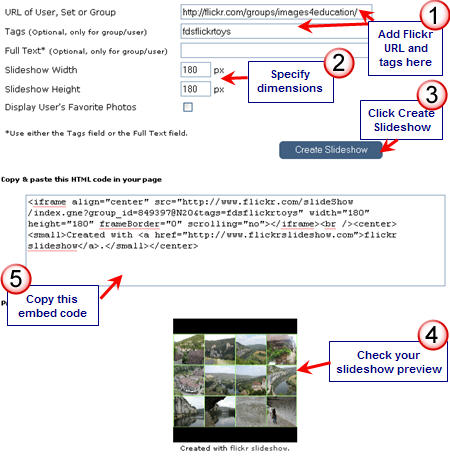
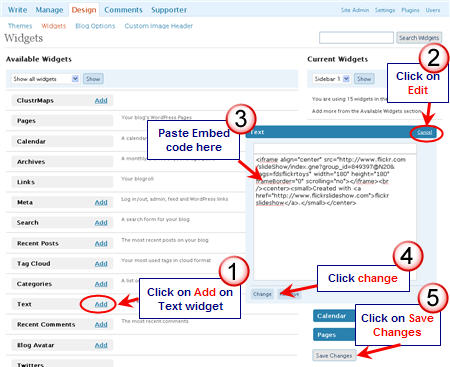
Once you have grabbed the embed code from FlickrSliDR or Flickr slideshow go into your blog dashboard and add it to your sidebar using a text widget (Click on Design > Widgets).
Examples of Sidebar Slideshows
Below is an example of the size of a Flickrslideshow you would add to a blog sidebar. I’ve used the fdsflickrtoy tag from images4education. If you want to learn more about adding images to your in-class and online activities raise student interest I recommend you join images4education (you will be able to catch up with the weekly tasks).
Created with flickr slideshow.
Check out Ms. Kreul’s class blog to see a cool tour of their class created using FlickRSLiDR widget embedded in their side bar.
FINAL THOUGHTS
To learn more about using Flickr check out:
- Quick Start Tips For New Flickr Users: Part I – setting up your account
- Quick Start Tips For New Flickr Users: Part II – using as part of your personal learning network (PLN)
- Quick Start Tips For New Flickr Users: Part III – doing cool stuff with Flickr
If you are enjoying reading this blog, please consider  Subscribing For Free!
Do you know how to add a flickr badge (slideshow) to an edublog HEADER (not sidebar). Trying to move from my old class blog from BlogMeister to edublogs and this is one of the widgets I’ve always liked at the top of my class blog.
Thanks in advance,
Gordon
http://mas5thgrade.org
Hi Gordon, apologies for the delayed reply. For some reason I didn’t see your comment. I don’t think we have any themes that allows you to add a Flickr Badge to your header. It isn’t really a feature you would see in a WordPress theme. However, we have lots of themes that allow you to upload a series of photos to the header image or to a slider and the images changes as you view the blog. This is the most common way teachers display rotating photos in the header of a blog.
Sue ( @suewaters )
it is great i like good article,thank u.
We have launched a unique widget that lets you surf through your entire photostream within the embed. Its really easy to use and can handle flickr, picasa, facebook and photobucket pics too!
Please find more details here: http://blog.lifeblob.com/2010/03/03/showcase-your-photos-with-the-new-embed-widget/
Hi Sue,
thanks for another great tip – you are fabulous. I’ve really only just begun blogging and your site and help is invaluable. Talk about a steep learning curve!! I’m looking forward to putting this into action. Thanks so much.
Hi Louise – it definitely is a steep learning curve. I just focus on taking one step at a time. Best of luck with your blogging.
Dear Sue, I love all the help you give on Edublogger. I was looking at some blogs created by teachers using other blog machines and some of them had added slide shows created in Picturetrail. I made a slide show with it and then couldn’t figure out how to add it my my blog. Can you help?
Glad that you find my information helpful. Sure happy to check out Picturetrail. Will add it to my list to check out. Please make sure you drop past and remind me (just in case).
Kia ora Sue!
What does ‘Build a Better Blog’ say about the clutter of a slide-show on the sidebar? I’ve become aware of clutter in this area ever since you mentioned about prioritising what’s put there in terms of widgets. A slide-show surely must rank in this heirarchy.
Here’s where I’m coming from. Pictures on the post should be relevant to the post. Else, the picture becomes a distractor. Cutting away such distractors is simply good blogging. (From a learning/pedagogy point of view, irrelevant distractors should be eliminated where possible anyway.)
A slide-show on the side-bar is not necessarily going to be relevant to any post.
Catchya later
from Middle-earth
Agreed Ken – but then it does also get back to the purpose of your blog. For example a class blog they might want a simple way of showing parents what is happening in the classroom – sideshows do this well.
Kia ora Sue
When does the purpose of a blog comprimise the design when it may lead to distraction from a post? There must be less obtrusive ways of presenting a slideshow of classroom activity, to use your valid example, than in the side-bar. A button to a web page where the show could be displayed would surely be less likely to intrude on the design with less likelihood of possible distractions from future posts.
Check out the STOP sign design project 🙂 .
Catchya later
from Middle-earth
Totally agree with you regarding sidebar clutter and that it can definitely detracts from reading a post. When you look at this blog there is way too much clutter because I have lots in my sidebar that are necessary for demonstrating widgets.
Reality with class, teacher and student blogs is widgets in sidebars are part of making that blog their own. In the case of both class and teacher blogs they can also be about providing information that is helpful to both students and their parents e.g. Google Calendars, images that show what is happening in the class, books worth reading.
Interesting that in part this is a bit like the conversation I had with Paul C on my personal blog about the difference between probloggers and edubloggers. The whole sidebar issue also relates to the distinction between these two types of bloggers.
Thank you so much Sue! I was amazed at just how easy it was to embed the slideshow in our blog.
Lucy 🙂
Hi Lucy, saw your twitter last night about the problem with your slideshow. Went into your blog to see why? To be honest not sure. But have re-embedded it and is now working fine (I hope). There were slight differences between your code and my code – it must have been having a bad attitude day.
Thank you. Sue!!!! I can’t wait to try this. I will have to get my photos organized in Flickr first but now I have motivation to do so. Will tweet when it’s up. Enjoy the rest of your weekend!
Betsy
Hi Betsy – your Flickr slideshow is looking good. Well done.