Our last post discussed the benefits of adding a Google Calendar to your class blog to display important dates and showed you how to use Google Calendar. Rob Berry asked how to add to blogs so this post will show you how to embed a Google Calendar into your blog sidebar and the next post will explain how to embed on a page.
Embedding Google Calendar In Your Blog Sidebar
- Sign into your Google Calendar and click on Settings.
- Click on the name of the Calendar you want to embed into your blog sidebar.

- Scroll down to Embed this Calender and click on Customize the color, size, & other options

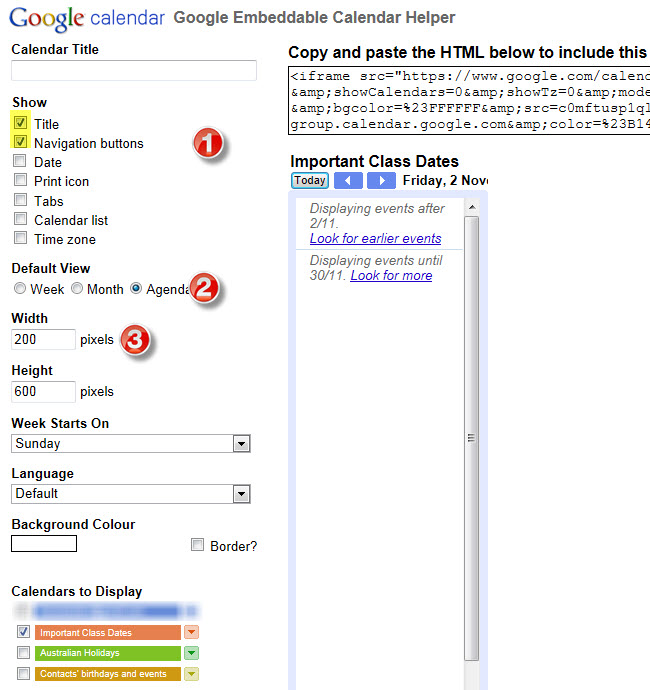
- Change Default view to agenda, change width to 230 pixels (you may need to adjust this width depending on your blog sidebar) and untick any calendars you don’t want displayed when the calendar is embedded in your blog sidebar. Now copy the embed code.

- In your blog dashboard click on Design > Widgets and add a new text widget to your Current Widgets by clicking on Add next to Text widget in the Available Widget area.

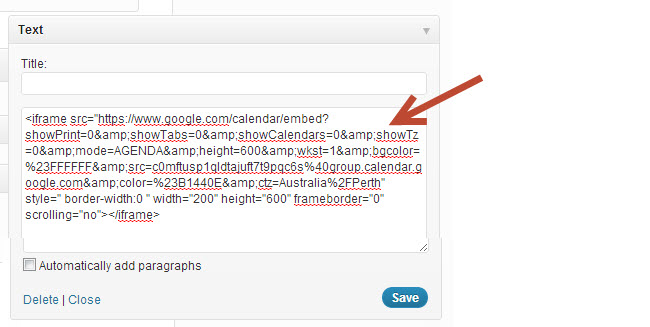
- Click on Edit on the Text widget you just added to the Current Widget area. Now paste the HTML code for the calendar into the Text Widget and click on Change. Finally click on Save Changes.

- When you view your blog you should see your Google Calendar embedded in your blog sidebar.
FINAL THOUGHTS
Here are some class blogs with Google Calendar embedded in their sidebar to see how they are being used:
- Ken Pendergrass’s Eckstein Middle School Choir blog
- Bryan McDonald’s Mr Mac’s Class Blog
Remember here is how to use Google Calendar and this post explains how to embed on a page.
If you are enjoying reading this blog, please consider
Subscribing For Free!


16 Comments So Far»
What do you know about blogging? Do you think this is a good idea?
[Reply]
Great Tip! Thank you!
[Reply]
Thanks for such a timely response to your last Edublogger. I read your directions and was delighted to find that I embedded my Google calendar just as your directions! I have come aloooong way! For me, using the calendar on the sidebar isn’t as good as what I wanted, so I put it on a new page and put a link to it on my front page. It works much better for my needs this way. My advice for anyone trying to fit a blog into their classroom is to not give up and just keep poking around and striving to make it better. I have learned a lot just looking at others’ blogs. We are one creative bunch! If you’d like to see how my Google Calendar is being used for my Algebra classes, come on by and maybe even drop me a not on one of my posts to say hi! jmartino.edublos.org
[Reply]
@Chen54 For some circumstances embedding a calendar is a good idea.
@Esther Glad you found my post helpful.
@Ms Martino Glad to hear that it worked and that embedding it on a page was the better option for you. I will be following up with embedding on a page and will link to your page if that is okay? Great advice to people starting out using blogs with their students.
[Reply]
Nice information…
[Reply]
Would love to do this BUT when I click on ‘edit’ on the text widget it disappears rather than showing me options – what can I do?
Thanks!
Tony
[Reply]
@Tony Perhaps try adding the text widget and then immediately click Save Changes at the bottom of the Available Widget area. Then try clicking Edit. Hopefully that will make the widget behave.
[Reply]
Every time I hit edit in the Text box the whole box disappears. Any ideas?
[Reply]
@Ncaves try the same trick I suggested above for Tony. That method worked well for him.
[Reply]
A few of us tech-types were just talking about this in the staff room the other day. I had put it on my lists of things to figure out. I’ll put a link up on my blog soon so my colleagues can just follow your directions and leave me to drink my coffee and ponder the treasure house of snacks in our staff room vending machine.
Thanks for tutorial.
[Reply]
@Al Gunn You mean they have the snack machine in your staff room? That must be so hard to cope. Are you like us as well – -if it is your birthday you have to bring food for morning tea for everyone? Yum.
Hopefully the link will help them work it out so you are left in peace to eat
[Reply]
Sue, I am wondering if you can provide some help for me. Since the last upgrade, everyone who is subscribed to my blog receives an email alert that looks like the message below the ****
Is this normal? Before the upgrade a simple email went out stating that the blog had been update. Click on a link.
Is there a setting that I can adjust? This is happening to all my blogs:
georgetown.edublogs.org
blogpals.edublogs.org
ptclub.edublogs.org
Let me know if there is something I need to do or if this is the new normal! Theresa
**************************
Date: Mon, 8 Dec 2008 10:27:46 -0500
From: “Edublogs.org”
Message-ID:
X-Priority: 3
MIME-Version: 1.0
MIME-Version: 1.0
Content-Type: text/plain; charset=”UTF-8″
X-Barracuda-Connect: web1.edublogs.org[64.225.152.17]
X-Barracuda-Start-Time: 1228750067
X-Barracuda-Virus-Scanned: by OAISD Barracuda Spam Firewall 2 at oaisd.org
X-Barracuda-Spam-Score: 0.00
X-Barracuda-Spam-Status: No, SCORE=0.00 using per-user scores of TAG_LEVEL=2.0 QUARANTINE_LEVEL=5.0 KILL_LEVEL=1000.0 tests=
X-Barracuda-Spam-Report: Code version 3.2, rules version 3.2.1.12253
Rule breakdown below
pts rule name description
—- ———————- ————————————————–
Content-Transfer-Encoding: quoted-printable
Dear, Schools that Blog Together, Learn Together! =E5=AD=B8=E6=A0=A1=
=E5=8D=9A=E5=AE=A2=E5=9C=A8=E4=B8=80=E8=B5=B7 … =E5=85=B1=E5=90=8C=E5=
=AD=B8=E7=BF=92 ! subscriber,
Schools that Blog Together, Learn Together! =E5=AD=B8=E6=A0=A1=E5=8D=
=9A=E5=AE=A2=E5=9C=A8=E4=B8=80=E8=B5=B7 … =E5=85=B1=E5=90=8C=E5=AD=B8=
=E7=BF=92 ! has posted a new item: From Jia Yu Liu, A Graduate Student In=
Taiwan
In response to our question about the weather in Ping Tung:
Hello!
We never have snow in Ping-Tung.
There is alway sun every day.
Therefore, it is warm!
You can read the post in full here: http://blogpals.edublogs.org/2008/12/=
08/from-jia-yu-liu-a-graduate-student-in-taiwan/
Thanks,
The Edublogs.org Team
Click here to modify your email settings: http://edublogs.org/subscriptio=
ns/?email=3Dawhiteni%40hudsonville.k12.mi.us
[Reply]
@treagan I’ve forwarded that onto James to check but had no response. However another user has informed me that the email widget isn’t in their dashboard. I’m assuming that it has been removed to fix or it will be an option that is only available for Edublogs supporter.
I suggest that you read the latest announcement from the main Edublogs blog.
An alternative option would be to add a feedburner email subscription to your blog.
[Reply]
Hi,
Using WordPressMU 2.6.5 and Inove/Disciple themes.
I’ve added a google calendar into a sidebar as per your instructions but the text widget does not seem to hold on to the statement.
Every time I try and paste the code into the text widget then click ‘Save Changes’ it disappears.
I have used the trick you mentioned above but this will not work either.
I have successfully installed the WPNG plugin and I am displaying a google calendar in my test blog http://greshams.biz/blog/ but this will only allow one google calendar to be added to the WPNG widget.
Several staff create their own calendar for their activities/sports and I then merge them using the standard method as you have described in this post.
I then use this code onto our non blog website which works a treat, http://www.greshams.com/senior/calendar.php.
Do you know why the statement does not seem to work?
Sorry to add so many links to our school.
[Reply]
Sue Waters Reply:
February 1st, 2009 at 1:19 pm
Hi Jim – My understanding is that WordPress MU has it set up so that it blocks most embed code. It is designed as a security feature to prevent any code that might cause problems.
To enable the code to be embedded you need to know how to change the coding of your WordPress MU. So with Edublogs that is what they have done. That is why you often see the differences in ability to embed between Edublogs and WordPress.com.
[Reply]
Jim Reply:
February 2nd, 2009 at 1:17 am
Ahh… many thanks for this.
I will delve into the Wordpress MU site and see what I can find.
Thanks again
[Reply]
EXCELLENT! My staff have been asking for tips on this, and I created a voicethread to help them, but this is MUCH better than my lame tutorial. Thank you, Sue!
[Reply]
Sue Waters Reply:
February 1st, 2009 at 1:20 pm
Glad my tutorial has been helpful. I’m sure yours was good – some people prefer video tutorials others prefer step by step. So it is helpful to have a mixture of both.
[Reply]
Hi,
I apologise for adding this here but I wondered if you could help?
I’ve been experimenting with a messaging system for our school and thought WordPress would be a great way to do it.
I have created a test messaging system http://www.greshams.biz/blog/test which is configured to use a 1024 X 768 widescreen display.
I think I’m pretty much there, but I would like some help with refreshing IE after a new post has been entered into WordPress.
I’m unsure if it can be done?
I wonder if it is possible for WordPress to somehow, tell IE to refresh after a post has been entered? This would then allow our receptionist to add posts without having to F5 the comp used for the display.
Many thanks
[Reply]
Sue Waters Reply:
February 14th, 2009 at 5:28 pm
Hi Jim, I’m not sure if it can be done. It may also depend on if you are using self hosted WordPress, WordPress MU or your blogs are hosted by someone.
[Reply]
Jim Reply:
February 17th, 2009 at 2:08 am
Hi Sue,
Many thanks for the reply.
I’m using WordPressMU which is self hosted.
Currently I am using meta refresh to force IE to refresh after a period of time.
This is not ideal as this will have to be altered to allow for new posts being added or old posts being removed.
I wondered if you knew of a way, some clever script somewhere, that would refresh IE after a post had been added or removed.
Thanks again.
[Reply]
Sue Waters Reply:
February 18th, 2009 at 3:52 pm
Hi Jim – Coding for WordPressMu is quite specialised so probably worth you asking in the WordPress forum if it is even possible.
[Reply]
3 Pingback & Trackback On This Post
Leave comments