Voki speaking avatars are cool and lots of fun to create.
They’re used to add a human element to their blogs or engage students.
But they can be a bit pesky to embed in a blog so this post explains how to add a voki to your blog sidebar.
Our next post explains how to add them to a Post or Page.
About Vokis
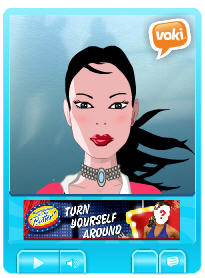
Voki enables you to create an avatar in your own voice using a talking character.
You can customize your Voki to look like you or take on the identity of different characters such as animals, monsters.
Here’s ideas for using Vokis in your classroom (courtesy Helen Otway – Classroom2.0):
- Students can create avatars that are similar in looks or personalities and record a message that tells about themselves.
- Students can exchange these avatars with e-pals either within their own setting or anywhere in the world.
- Students can generate questions to ask their avatar e-pals.
- ESL (English as a Second Language) students can use the speaking avatars to practice and listen to their speech. They may use the computerised voice first then record their own voice when they feel more comfortable. Writing, reading and pronunciation are all practised.
- Students can create an avatar that resembles a character from a story, add a setting and give it speech. The speech could be from the story or a creative point of view (POV) from the character on an event.
Adding Voki Avatar to Your Blog Sidebar
Voki’s as added to your blog sidebar using text widgets as follows:
1. Go to Voki
2. Set up a Voki account and then create your own Voki.
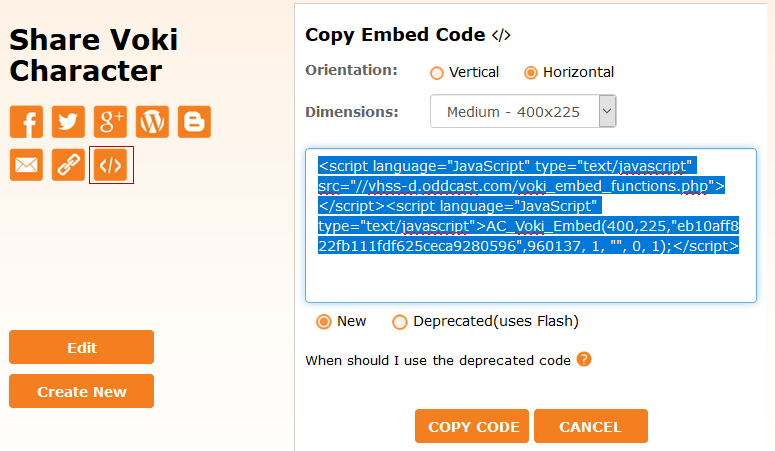
3. Once you have published your Voki grab the HTML embed code as follows:
a) From drop down menu next to ‘Embed in’ select WordPress
b) From drop down menu next to ‘Size’ select Small (200 x 267) — use custom dimension of Width 170 for narrow sidebars
c) Click Get Code and copy all the HTML embed code
Tip: Fastest way is to use the ShortCut Keys Ctrl+A to select all text and Ctrl+C to copy the text
4. Go to Appearance > Widgets in your blog dashboard
5. Click on the desired Sidebar to expand (so you can add the widgets)

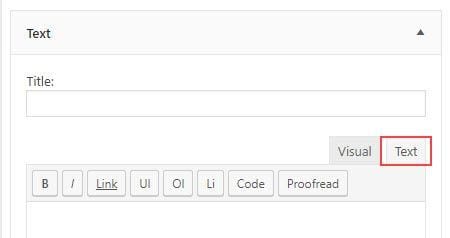
6. Add a text widget to the desired sidebar by dragging it from the Available Widgets into the Sidebar area on the right.

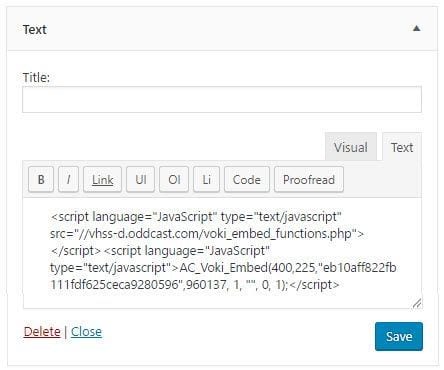
7. The widget will automatically open — just add the HTML code for your Voki, click Save and then Close.
8. You should now see your Voki in your blog sidebar!
Tips for Using Voki
- Audio is better quality and easier to add when created using Audacity
- Voki terms and conditions state you must be over 13 years to use their service
- These instructions for embedding Vokis won’t work on WordPress.com blogs due to restrictions on the types of code allowed.
FINAL THOUGHT
We hope you enjoy creating your voki avatars and adding them to your blogs. Please let us know how you go!
Read our next post to learn how to embed a Voki avatar in a post or page.
If you are enjoying reading this blog, please consider
Subscribing For Free!


Hi,
I’m glad that you are all enjoying Voki.
I work for Voki and at the moment we are trying to figure out what we can do to make Voki more valuable to educators. Would you be willing to spend a few minutes chatting with me?
Thanks,
Avi
agoldwerger@oddcast.com
@Avi, thanks for popping past Avi. I’m not sure how you can make it more valuable as it is one of the most popular tools for educators and their students.
Probably the only issue I ever hear is they aren’t happy with having ads but that isn’t something that has an easy solution
can’t seem to get it into my sidebar on my wordpress blog. I’m following the instructions and each time I save the code in the text box, it will only show the “get a voki” link. same thing happens with trying to post it as just a regular post. what to do?
@cwill, Sorry but you can’t add to a WordPress.com blog as they have stricter guidelines in terms of what types of embed code can and can’t be embedded into their blog posts and text widgets.
I have had a voki for 2 years and now all that shows up is ADD A VOKI. I also lost my virtual pet. Why? Any ideas? Do I need to upgrade from the free version?
@mstoddart1 Sorry but sploggers, who create lots of blogs to promote products, were using the JavaScript for redirects on free blogs. ‘No’ other blog hosts who are powered by WordPress allows embedding like we have done so far and we’ve been forced to limit it due to this abuse by sploggers.
This is why your Voki and other widgets are no longer working.
The key is we still want our users to have this ability but we had to provide it in such a way that the sploggers can’t use it.
The only solution was to link it to Edublogs Pro and Campus like we had to do with XML-RPC.
So what we have done is an Edublogs Pro is automatically able to embed all code including Voicethreads, Teachertube and is able to upgrade up to 50 blogs other blogs so that the 50 other blogs can also embed code, access premium themes and their ads are disabled.
I have an edublog but.. my voki doesnt have the dropdown menu to click wordpress… any help please?
Hi Kaitlyn, currently you won’t be able to add a voki to your student blog. Does your teacher have a class blog? If so, can you give me a link so I can see if it is possible to enable ability to embed a voki on your blog using the class blog.
@ Sue,
My teacher does not monitor my blog because i made it on my own but she has a class blog, we just finished our year. the link is
http://kwebb.edublogs.org
and mine is http://kemscott15.edublogs.org
From,
Kaitlyn
Hi Kaitlyn, thanks for explaining.
I’m impressed by your work and have now fixed it so you can embed any code including Voki’s and you also have access to the Premium themes.
Please drop past every now and then to let me know how your blogging is going!
Keep up the excellent work!
Hi Sue,
Thanks, But I have 1 more question. Do I get the premium themes for just voki? Or my WHOLE blog?
Kaitlyn
Hi Sue,
Thanks, But I have 1 more question. Do I get the premium themes for just voki? Or my WHOLE blog?
Kaitlyn
Hi Kaitlyn, It gives you access to Premium themes inside your blog dashboard. All you need to do is go to Appearance > Premium themes to see an increased choice of themes to use on your blog.
Ok, Thank you Sue
I am a newbie blogger, so please forgive my unfamiliarity with both Voki and Edublogs. I’ve created each and have a decent understanding of the concepts, but when I try to follow your directions, like a user above, I was unable to embed my Voki. There is no drop-down box that says WordPress. I can select it as a direct embed, but then it won’t give me a code but rather asks that I sign-in to WordPress. When I try copying the standard code it doesn’t work at all. When I hit save in Edublogs it dumps over half the embed code and nothing shows up on my blog wall. Can you offer me some clarification or suggestions? Thanks!
Hi Lisa,
I’m sorry but you can’t be able to add any embed code unless you are using an Edublogs Pro blog or have had extra features enabled on your blog by an Edublogs Pro blog.
We’ve had to add these restrictions due to misuse by spammers.
That’s a bummer, but I completely understand. Thank you for the clarification.
Hi Sue,
I can’t add Voki in a post either, although I followed the instructions. Why doesn’t this restriction with embeded code apply to Wordle?
I’m afraid I’ve found Edublogs rather unfriendly for a novice who would like to experiment without having to pay the Pro fee.
hi thankyou for the side bar i realy enjoy it